
TEAM CREATED TOOL
Home Presentation Advisor
See the possibilities.
Plan the preparation.
Review a home's curb appeal, interior staging, or both. Turn property photos into practical recommendations, optional improvement images, and a PDF to discuss with your seller.
Open Home Presentation AdvisorOpens in a new tab. Keep this guide handy.
First time? See the four steps below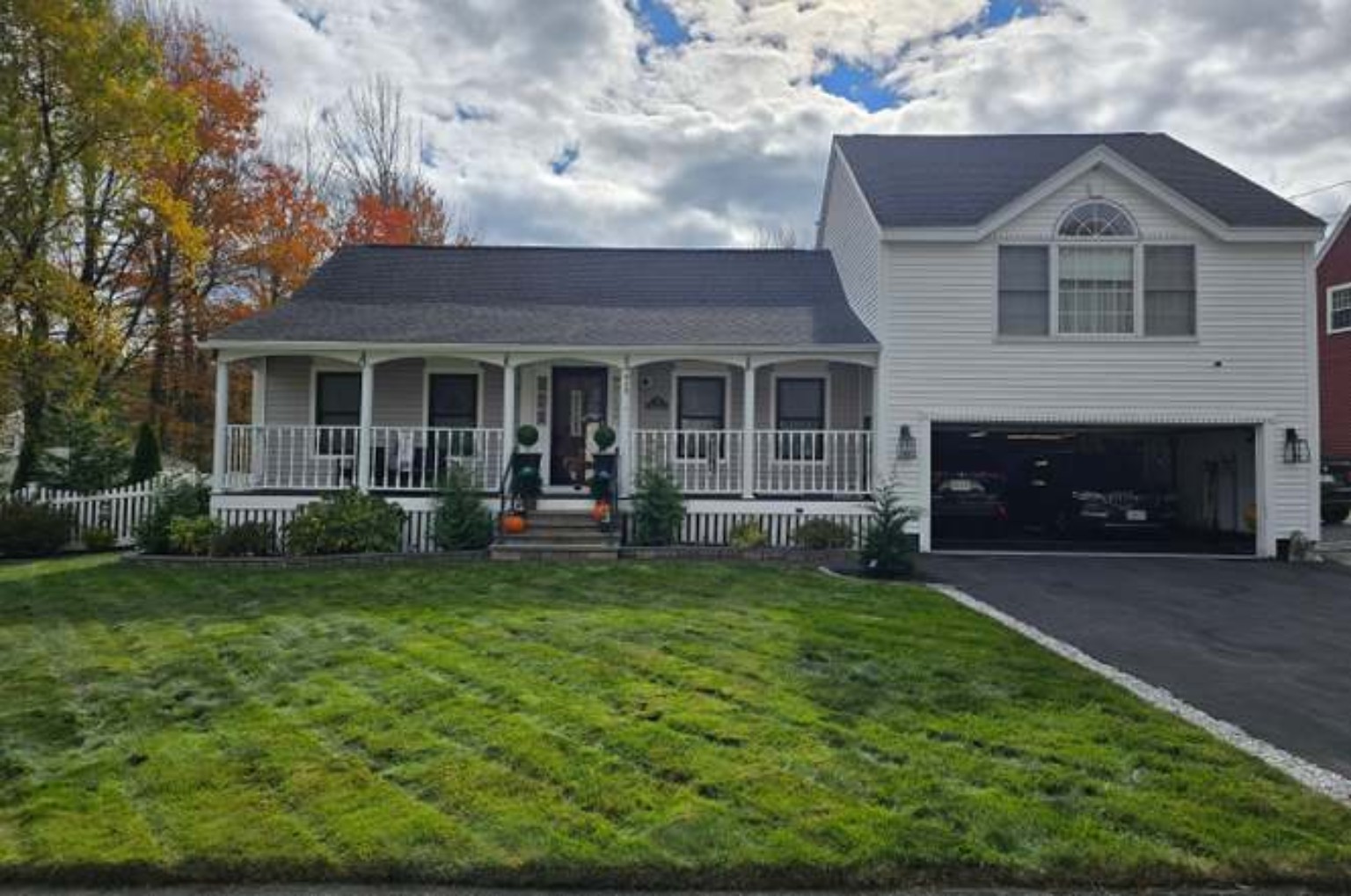 Original photo
 Example AI concept
Why we created it
We created Home Presentation Advisor to help agents and sellers decide where to start when preparing a home. A clear list of practical improvements, supported by photos and visual examples, can make that conversation easier and keep attention on the details that need work.
YOUR FIRST PROPERTY REVIEW
Four steps from photos to a plan
Choose the areas to review
Select Interior, Exterior, or Both interior & exterior. Add up to two exterior and five interior photos. Include a budget, timeline, or instructions if helpful.
Review the assessment
Select Analyze photos when AI is connected, or use the manual review option. Read the scores and recommendations, then edit them to reflect your judgment.
Explore improvements
Choose the changes you want to visualize and select Create improvement image. Compare it with the original, then continue to the next photo or section. Images are optional.
Save the property report
Finish your selected sections, then select Prepare complete property report followed by Download PDF Report. Review the PDF before sharing it with your seller.
Photo requirements: JPG, PNG, or WebP, up to 20 MB each. Convert HEIC photos to JPG first. Each interior photo gets its own review, including repeat views of a room.
BEFORE YOU BEGIN
What to expect
Your judgment still matters
Scores reflect subjective, visible presentation. Hidden conditions are not assessed. Cost ranges are planning estimates to verify locally. Use your experience to refine the recommendations.
Allow time for AI
Automated reviews and new images need an active AI connection. The tool shows timing estimates and progress messages. Keep the tab open while it works. Daily attempt limits apply.
Download a lasting copy
Save your report before starting another property. Optional recovery drafts stay in that browser and do not sync across devices. They are a backup, not a replacement for your download.
Review every concept: Automatic concepts aim to preserve the existing layout, but AI can change unintended details. Compare fixed features with the original and identify the image as a proposed improvement when sharing.
PUT IT TO WORK
Give your next seller a clearer plan.
Start with the example assessment, then try a property of your own.
Opens in a new tab. Keep this guide handy.